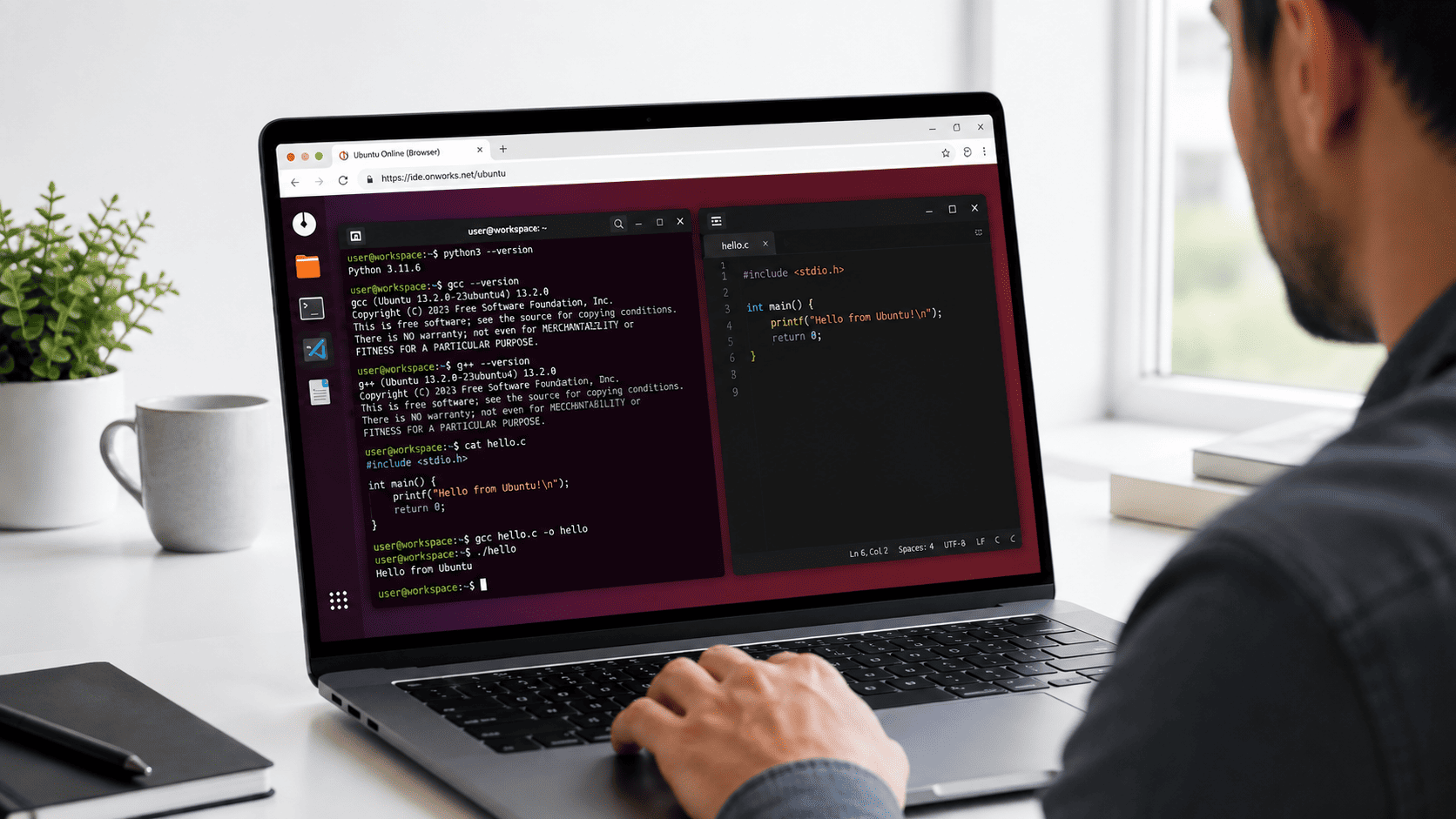
An Ubuntu online compiler gives you access to a Linux environment where you can write, run, and test code without installing Ubuntu on your computer.
For example, you may need to practice Linux commands, test a short program, explore a development tool, or work from a device where installing Linux is not practical.
However, there is an important difference between a simple online compiler and a full Ubuntu environment.
A typical online compiler gives you a code box and a Run button. In contrast, an online Ubuntu environment can provide access to the Linux terminal, file system, desktop, and available development tools.
With OnWorks Ubuntu Online, you can launch an Ubuntu environment from your browser. Then, you can check which programming languages and compilers are available before you start coding.
What is an Ubuntu online compiler?
An Ubuntu online compiler is a browser-accessible environment that allows you to run or compile code using Linux-based tools.
Depending on the platform, it may provide:
- a simple code editor connected to a compiler;
- an online Linux terminal;
- or a more complete Ubuntu environment running remotely.
The third option offers additional flexibility because you are not limited to a single programming language or code editor.
For instance, inside an Ubuntu environment, you can use the terminal to check whether tools such as Python, GCC, G++, Ruby, Go, or Rust are available.
As a result, an Ubuntu environment can be useful for more than simply pressing Run on a code snippet.
Ubuntu online compiler vs full Ubuntu environment
These two concepts often appear together in search results. However, they are not exactly the same.
| Feature | Simple online compiler | Online Ubuntu environment |
|---|---|---|
| Run code | Yes | Yes, when the required tool is available |
| Linux terminal | Sometimes | Yes |
| File system | Limited | Linux file system |
| Multiple languages | Usually selected individually | Depends on installed tools |
| Linux commands | Limited | Yes |
| Desktop environment | Usually no | Available on services such as OnWorks |
| Explore Ubuntu | No | Yes |
| Test scripts | Yes | Yes |
| Change between tools | Limited | More flexible |
A simple compiler is often faster when you only need to test a few lines of code.
On the other hand, an online Ubuntu compiler environment becomes more useful when you also want to understand how code behaves inside Linux.
Why use an Ubuntu compiler online?
Installing Ubuntu locally is useful for long-term development. Nevertheless, it is unnecessary for every coding task.
An online environment can be a practical alternative when you want to:
- test a small program;
- practice Linux commands;
- explore Ubuntu;
- work on a school or shared computer;
- use Linux from a Chromebook;
- test a shell script;
- verify whether code runs under Linux;
- experiment without changing your main operating system.
In addition, browser-based Ubuntu can be useful for beginners.
Instead of starting with disk partitions, virtual machine configuration, or dual boot, you can first become familiar with the Linux environment itself.
Therefore, you can learn the basics before deciding whether you need a permanent Linux installation.
How to use the Ubuntu online compiler environment in OnWorks
OnWorks provides an Ubuntu 22 environment that runs remotely and can be accessed through a web browser.
To get started:
- Open the Ubuntu 22 Online page in OnWorks.
- Select Run Online.
- Wait for the Ubuntu environment to start.
- Open the Terminal.
- Check which programming tools are available.
- Create or open your code file.
- Run or compile the program using the appropriate tool.
The fifth step is especially important.
Rather than assuming that every compiler or programming language is available in every session, check the environment first.
This way, you know which tools you can actually use before starting your project.
Check which programming languages are available
Once the Ubuntu terminal is open, you can check individual tools with simple version commands.
Check Python
Enter:
python3 --version
If Python 3 is available, the terminal will return its installed version.
Check the C compiler
Enter:
gcc --version
When GCC is installed, Ubuntu will display the compiler version.
Check the C++ compiler
Enter:
g++ --version
This command checks for the GNU C++ compiler.
Check Go
Enter:
go version
If Go is available, its installed version will appear.
Check Rust
Enter:
rustc --version
Similarly, this command tells you whether the Rust compiler is available.
Check Ruby
Enter:
ruby --version
If Ruby is installed, the terminal will return the current version.
If any command is unavailable, the terminal will normally indicate that the program cannot be found.
Therefore, these quick checks can prevent you from planning a workflow around a tool that is not present in the current environment.
Run Python with an Ubuntu online compiler environment
Python is one of the simplest languages to test from a Linux terminal because it normally does not require a separate compilation step.
First, check whether Python is available:
python3 --version
Next, create a simple file named:
hello.py
Add:
print("Hello from Ubuntu")After saving the file, run:
python3 hello.py
The terminal should display:
Hello from Ubuntu
This basic workflow is useful for learning how files and commands work together inside Linux.
Moreover, it gives beginners experience with running Python outside a graphical IDE.
Compile C code in Ubuntu online
If GCC is available, you can also compile a simple C program.
First, create a file called:
hello.c
Add:
#include <stdio.h>

int main() {
    printf("Hello from Ubuntu\n");
    return 0;
}
Next, compile it with:
gcc hello.c -o hello
If the compilation finishes without errors, run the program:
./hello
The terminal should return:
Hello from Ubuntu
In other words, you have followed the basic Linux C workflow:
source code → compiler → executable → run
This workflow differs from using a simple web compiler because you can see how the executable is created inside the Linux environment.
Compile C++ in an Ubuntu online environment
C++ follows a similar process when g++ is available.
Start by creating:
hello.cpp
Then add:
#include <iostream>

int main() {
    std::cout << "Hello from Ubuntu" << std::endl;
    return 0;
}
Next, compile it:
g++ hello.cpp -o hello
Finally, run:
./hello
As a result, an Ubuntu online compiler can be particularly useful for students learning not only C++ syntax but also how compilation works inside Linux.
Use Bash and Linux commands online
Coding inside Ubuntu is not limited to traditional programming languages.
You can also practice Bash and standard Linux commands.
For example:
pwd
shows your current directory.
Meanwhile:
ls
lists files and directories.
To create a directory called project, use:
mkdir project
Then move into that directory with:
cd project
You can also create a simple Bash script.
Create a file called:
hello.sh
Then add:
#!/bin/bash
echo "Hello from Bash"
Finally, run it with:
bash hello.sh
For beginners, this is useful because it connects programming concepts with the Linux command-line environment.
If your main goal is learning Linux commands rather than compiling programs, you can also explore the OnWorks guide about using an online Ubuntu shell and terminal.
Online Ubuntu compiler for students
An online Linux environment can be especially useful for students who do not have permanent access to a Linux computer.
For example, a student can use an Ubuntu browser environment to:
- practice terminal commands;
- test programming exercises;
- learn basic C or C++ compilation;
- run Python files;
- experiment with Bash;
- understand Linux directories;
- explore Ubuntu before installing it.
Additionally, an online environment lowers the barrier to experimentation.
A beginner can make mistakes inside a temporary Ubuntu session without having to reconfigure the main computer.
As a result, students can focus on learning Linux and programming concepts rather than on installation.
Use Ubuntu online for quick development tests
Developers can also use browser-based Ubuntu environments for small experiments.
Suppose you want to know whether a short script behaves differently in Linux than on another operating system.
In that situation, launching and configuring a complete local virtual machine may be unnecessary.
Instead, you can open an Ubuntu environment, check the available tools, and run the test.
Therefore, this approach works particularly well for quick experiments and compatibility checks.
However, it should not be confused with a permanent professional development server.
Ubuntu online compiler vs local Ubuntu
Which option is better depends on what you are trying to accomplish.
| Choose Ubuntu Online when… | Choose local Ubuntu when… |
| You need quick access | You use Linux every day |
| You want to test a small program | You are building large projects |
| You cannot install software | You need complete system control |
| You are learning Linux | You need persistent configuration |
| You want to explore Ubuntu first | You need maximum performance |
| You use a shared or restricted device | You need direct hardware access |
For short learning sessions and experiments, browser access removes much of the setup.
By comparison, a local Linux installation, WSL, development container, or dedicated virtual machine usually provides more control for long-term development.
Therefore, neither approach is universally better. The right choice depends on whether you value immediate access or a persistent development environment.
Ubuntu online compiler vs online IDE
An online IDE is another option for browser-based programming.
However, an IDE and an Ubuntu environment solve different problems.
An online IDE focuses primarily on programming. For example, it usually provides an editor, syntax highlighting, a Run button, and project tools.
By contrast, an online Ubuntu environment focuses on giving you access to Linux itself.
Therefore, choose an online IDE when your main goal is writing code quickly.
An Ubuntu environment may be more appropriate when you also want to:
- work with Linux commands;
- understand the Linux file system;
- test command-line tools;
- use different editors;
- experiment with Bash;
- explore the Ubuntu desktop.
For Linux learners, this distinction can be especially important.
Can you install additional development tools?
The software available in a browser-based Ubuntu session can vary.
Before planning to use a particular compiler or framework, check whether it is already available.
In some environments, additional packages may be accessible through the Linux package management system. However, permissions, session configuration, internet access, and persistence can differ between online environments.
For that reason, this guide does not assume that every package can always be installed.
If you need a specific development stack for a long-term project, a persistent development environment may be more appropriate.
What are the limitations of an Ubuntu online compiler?
Browser-based Linux is convenient. However, it also has trade-offs.
Performance depends on the remote environment
The Ubuntu system runs remotely rather than directly on your computer.
Consequently, responsiveness can depend on server resources and your internet connection.
Sessions may be temporary
Do not assume that every file or configuration will remain available indefinitely.
Therefore, save important work separately when necessary.
Hardware access is limited
A remote browser environment is not the right choice when your project depends heavily on direct access to specialized hardware.
Instead, those projects usually require a local or dedicated environment.
Not every development tool is guaranteed
Always check which compiler, interpreter, framework, or utility is available before starting a project.
Otherwise, you may design a workflow around software that is not present.
Large builds need a different environment
Browser-based Ubuntu is useful for learning, testing, and lightweight development.
However, large software builds and resource-intensive workloads generally benefit from a local machine or dedicated development server.
Why a full Linux environment can be better for learning
Consider two ways of learning C.
In the first approach, you paste code into a website and press Run. The program works, and you see the output immediately.
In the second approach, you create hello.c, compile it with GCC, receive an executable file, list it in the directory, and launch it from the Linux terminal.
Although the final output may be identical, the second workflow teaches you more about the operating system around the code.
For example, you begin to understand:
- files;
- directories;
- executables;
- compilation;
- terminal commands;
- paths;
- Linux development workflows.
That is where a full Ubuntu environment has an advantage over a basic online compiler.
Run Ubuntu online without installing Linux
If your goal is broader than compiling code, OnWorks also lets you explore Ubuntu from your browser.
For example, you can use the environment to become familiar with the desktop, open the terminal, explore directories, and test Linux tools without replacing your existing operating system.
OnWorks provides an Ubuntu 22 environment alongside other Linux-based workstations.
If you are completely new to Linux, you may also want to read:
- Run Linux in Browser Without Installing Anything
- Try Linux Without Dual Boot – WSL vs Ubuntu Online Guide
- Run Ubuntu Online – Use Jupyter Notebook in Your Browser
Together, these guides cover broader options for accessing Linux without changing your primary computer.
Start coding with Ubuntu Online on OnWorks
You do not always need to install a complete operating system just to test how code works in Linux.
Instead, an Ubuntu online compiler environment gives you a faster way to explore that workflow.
With OnWorks, you can open Ubuntu through your browser, launch the terminal, check available development tools, and start experimenting.
For example, you can use it to learn Linux commands, test a Python script, compile a small C program, or understand how executables work inside Ubuntu.
Then, if your project grows beyond a temporary browser environment, you can move to a more permanent development setup.
Run Ubuntu 22 Online with OnWorks and start exploring Linux directly from your browser.
Frequently asked questions about Ubuntu online compilers
What is an Ubuntu online compiler?
An Ubuntu online compiler is a browser-accessible environment that lets you run or compile code using Linux tools. Some services provide only a code editor and compiler, while others provide access to a more complete Ubuntu environment and terminal.
Can I compile C online in Ubuntu?
Yes, if GCC is available in the Ubuntu environment. First, check with gcc --version. Then, you can compile a C source file with a command such as gcc hello.c -o hello.
Can I compile C++ in Ubuntu online?
Yes, when the G++ compiler is available. First, check with g++ --version. After that, compile the source file and run the resulting executable from the Linux terminal.
Can I run Python in Ubuntu online?
Yes, when Python is installed in the environment. For example, check by entering python3 --version. You can then execute Python scripts with python3 filename.py.
Do I need to install Ubuntu to compile code?
Not necessarily. Browser-based environments such as OnWorks can provide remote access to Ubuntu. Therefore, you can test code without installing Linux locally.
Is an Ubuntu online compiler the same as an online IDE?
No. An online IDE focuses mainly on coding tools. By contrast, an online Ubuntu environment can also provide a Linux terminal, file system, desktop, and access to operating-system tools.
Can I practice Linux commands online?
Yes. For example, a browser-based Ubuntu environment can be used to practice commands such as pwd, ls, cd, and mkdir without installing Linux locally.
Is Ubuntu Online suitable for large development projects?
Generally, it is better suited to learning, testing, exploration, and lightweight tasks. For larger or long-term projects, a persistent local or dedicated cloud development environment usually provides more control.
What programming languages can I use with Ubuntu Online?
The exact tools depend on the environment and session. Therefore, check installed tools with commands such as python3 --version, gcc --version, g++ --version, go version, or rustc --version before relying on them.

